
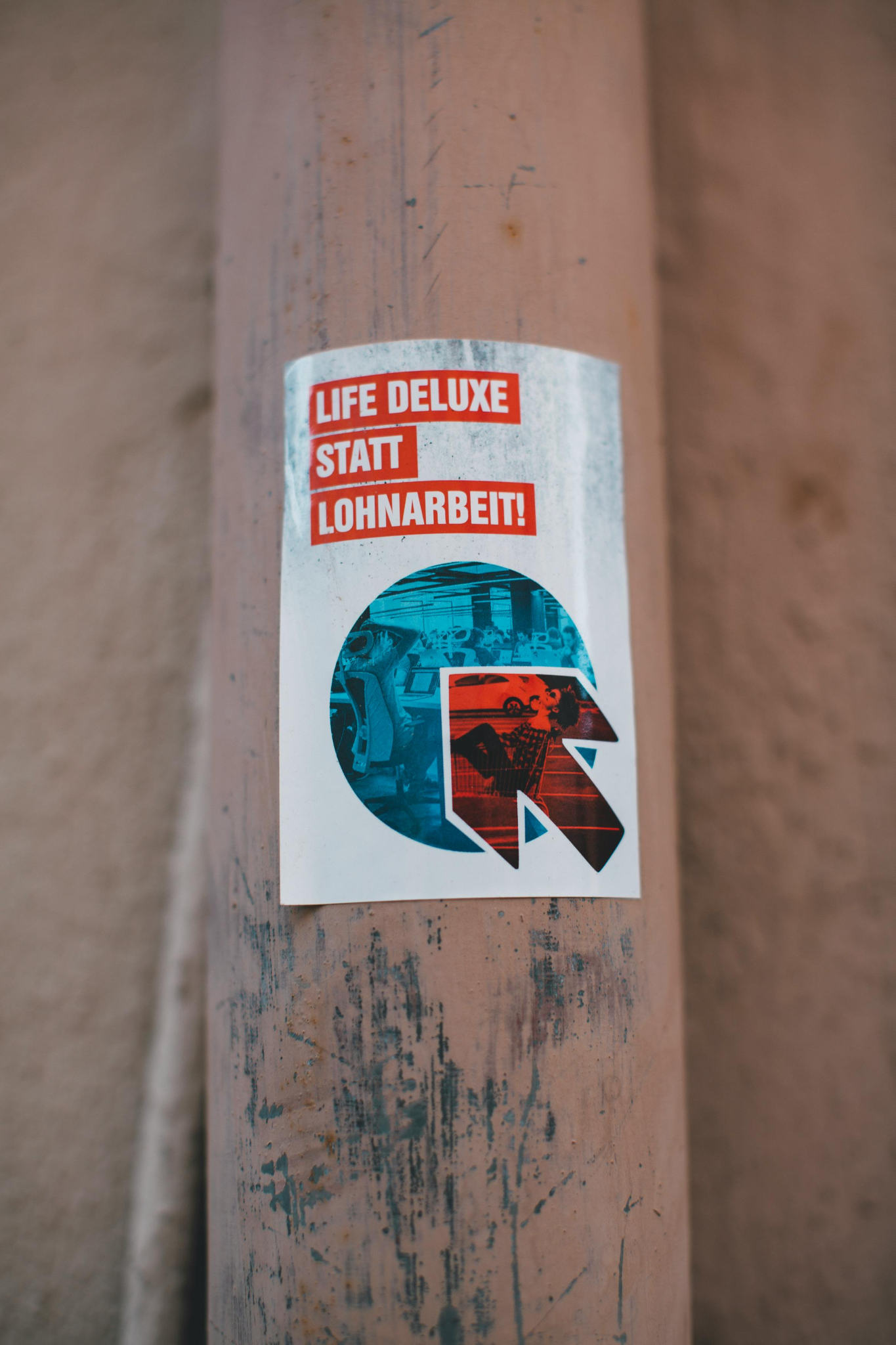
Digital sticker mockups serve as essential visual prototypes that help creators and businesses test adhesive graphics on different surfaces before investing in physical printing.
Why Digital Visualizations Save Time in Branding
Testing designs digitally allows creators to evaluate layout proportions and color vibrancy without spending money on trial print runs.
The practical value of adhesive branding in modern marketing remains significant for everything from product labeling to outdoor promotions. Because physical production requires financial commitments, evaluating sticker mockups beforehand helps teams refine their artwork. Seeing a logo placed on a laptop lid or wrapped around a cosmetic jar provides realistic context that flat design screens cannot achieve on their own.
Common Categories of Sticker Mockups for Brands
Different promotional campaigns require specific template layouts to ensure brand messaging resonates effectively across diverse physical products.
Creators select different styles depending on whether they are launching retail items or corporate giveaways. Reviewing standard categories ensures that printed items fit their intended application.
- Logo decals: applied to storefront windows, packaging boxes, and tech accessories for brand visibility
- Product labels: communicate ingredient lists, safety warnings, and usage instructions on glass jars
- Beverage wraps: feature custom catchphrases and vibrant branding elements around cylindrical containers
- Wall graphics: large adhesive panels that transform interior office spaces and retail environments
- Business card stickers: serve as portable contact cards affixed to public surfaces and promotional posts
- Seasonal badges: capitalize on holiday timing for limited-edition retail promotions
- Social media graphics: integrate digital hashtags and call-to-action banners into online storytelling
- Automotive badges: large weather-resistant vehicle decals built to capture attention from passing drivers
- Gift seals: decorative finishing touches added to retail packaging and personal correspondence
Material Finishes and Design Variations
Material textures dictate how ambient light interacts with a printed surface and alter the visual mood of a presentation.
Before finalizing a digital presentation, designers examine various physical finishes to match their brand aesthetic.
Standard flat layouts
Two-dimensional graphic templates provide a clean, distraction-free environment for emphasizing minimalist vector artwork without background distractions.
Contour die-cut formats
Custom-shaped templates follow the exact exterior perimeter of a graphic to create dynamic presentations for product packaging and promotional handouts.
Clear transparent films
Designed for glass or smooth plastic surfaces, transparent templates offer an understated aesthetic commonly used in eco-friendly branding efforts.
Light-reflecting holographic styles
Simulated metallic sheen and color-shifting properties help futuristic designs stand out for premium tech or lifestyle products.
Multi-item sticker sheets
Displays multiple independent graphics on a single backing sheet, making them popular for stationery branding and craft market displays.
Rugged textured backgrounds
Demonstrate how adhesive labels adapt to irregular surfaces like weathered wood, brushed metal, or coarse fabric.
Enhancing Realism in Visual Compositions
Applying contextual environmental details transforms flat digital art into a believable photograph of a physical object.

Integrating thoughtful lighting and background elements helps catch the eye of potential clients viewing online portfolios.
Building authentic environments
Placing graphics inside relevant spaces, such as a coffee shop interior for beverage labels or a tidy workspace for stationery items, grounds the artwork in reality.
Adding interactive edge wear
Curled corners and subtle peeling edges create depth by simulating physical adhesion to uneven materials.
Combining varied sticker styles
Mixing die-cut shapes with transparent overlays produces dynamic compositions that highlight product versatility.
Utilizing environmental props
Complementary objects like botanical leaves or electronic gadgets help reinforce the thematic focus of the underlying design.
Adjusting perspective angles
Varying camera viewpoints and showcasing close-up textures let viewers appreciate fine details from multiple visual perspectives.

Step-by-Step Guide to Editing Sticker Mockups in Affinity Photo
Affinity Photo delivers an efficient editing environment for wrapping graphics around complex cylindrical or angled surfaces.
Raster-editing software provides powerful layer controls that simplify the mockup customization process without requiring expensive subscription fees.
- Open the base mockup document by selecting File > Open, preferably using layered PSD files for smooth editing.
- Insert custom graphic files into the workspace by choosing File > Place.
- Scale and position the graphic to align with the designated target area on the background object.
- Warp the perspective to match surface contours using the Mesh Warp tool for bottles or notebooks.
- Apply specialized blend modes based on material properties:
Transparent stickers: lower layer opacity or select Multiply blend modes to let background textures show through.
Textured stickers: distort the graphic slightly to match surface irregularities and paint subtle highlights.
Flat stickers: introduce a gentle drop shadow beneath the artwork to create separation from the background.
Glossy stickers: paint soft white highlights on a separate layer above the artwork to simulate light reflection.
- Paint realistic ambient shadows on a dedicated layer beneath the sticker using a soft low-opacity brush.
- Export the finalized graphic by going to File > Export and selecting the appropriate resolution for your presentation.
Sourcing Ready-Made Sticker Mockup Templates Online
Graphic designers can acquire ready-made template packages from online asset repositories to speed up their workflow.
Extensive digital marketplaces offer downloadable mockup files that make creative experimentation accessible for independent creators. For more creative inspiration and related design resources, check out our guide on creative portraiture and digital portfolios to explore additional artistic workflows.
Frequently Asked Questions
What file formats are best for sticker mockups?
PSD files are standard for raster-based editors like Photoshop and Affinity Photo because they preserve smart layers and editable masks.
How do I make a flat sticker look curved?
Use the Perspective or Mesh Warp tool inside your editing software to bend the vector lines along the contours of the target object.
Can I use free design software for mockups?
Yes, programs like Affinity Photo, GIMP, and web-based tools allow users to open and modify standard mockup template layers.
Why use transparent stickers in presentations?
Transparent stickers work well on glass, plastic, or smooth surfaces to create clean and modern branding effects.
How do I add realistic shadows to a sticker?
Paint a soft, low-opacity black brush stroke on a separate layer directly beneath the sticker artwork to simulate depth.
Where can I find sticker mockup templates?
Many graphic marketplaces and design asset websites offer downloadable mockup packs for commercial and personal use.
Disclaimer: Design software interfaces, file formats, and digital tool capabilities can change over time. Readers should verify final specifications and export settings from official software provider documentation.

Daniel J. Morgan is the founder of Invidiata Magazine, a premier publication showcasing luxury living, arts, and culture. With a passion for excellence, Daniel has established the magazine as a beacon of sophistication and refinement, captivating discerning audiences worldwide.


