
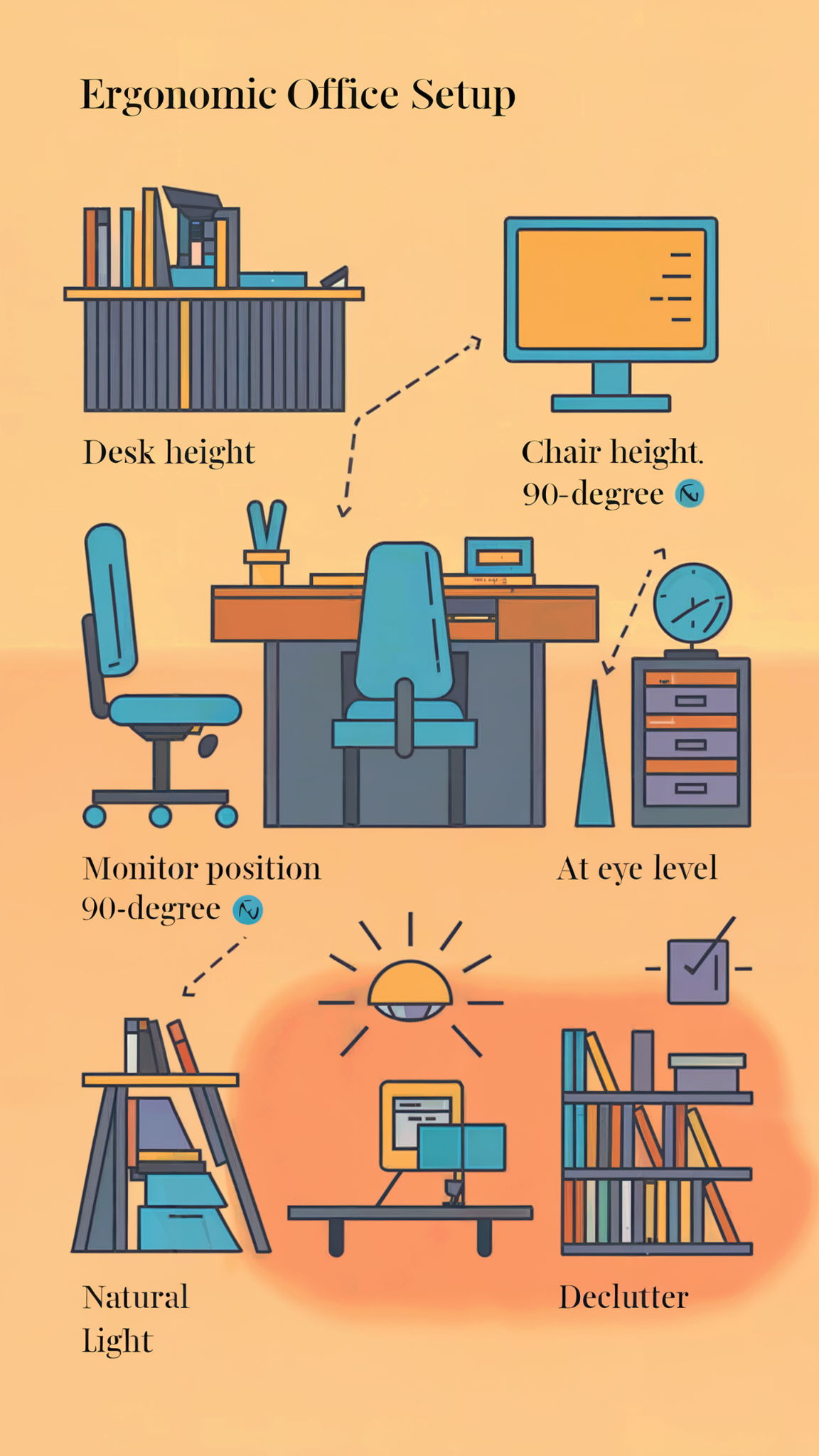
Designing an ergonomic office table setup is essential for maintaining comfort and efficiency during long working hours. Whether you are creating a dedicated workspace in your home or modifying a commercial office environment, proper ergonomics minimize physical discomfort, reduce stress, and enhance concentration. Taking time to adjust your desk, chair, and computer accessories creates an environment where you can work productively without unnecessary physical strain.
Why Ergonomics Matter for Your Daily Workflow
A poorly arranged workstation forces your skeletal system into chronic compensation, which quickly leads to cumulative fatigue and musculoskeletal strain.
When your writing surface sits too high or too low, your shoulders and neck muscles contract continuously to hold awkward postures. Over a standard eight-hour workday, this constant micro-tension cuts down your focus and triggers persistent back pain, tension headaches, and shoulder stiffness. Establishing proper desk geometry eliminates these hidden physical drains on your energy, allowing you to maintain streamlined daily workflow management without physical distraction.
Step 1: Finding Your Ideal Desk Height (Sitting vs. Standing)
Your table surface must match your body’s natural proportions so your forearms rest level with the floor while your shoulders stay completely relaxed.
For traditional sitting tables, sit upright with your feet flat on the floor and adjust the height until your elbows form a comfortable 90-degree angle. If your table is fixed too low, you will inevitably hunch forward, placing excessive stress on your lower lumbar discs. If you use a modern motorized sit-stand table, remember that the 90-degree elbow rule applies equally whether you are sitting down or transitioning to an active standing posture.
Step 2: Positioning Your Monitor and Reducing Eye Strain
Proper monitor placement prevents the constant up-and-down head tilting that strains your cervical spine and tires your eye muscles.
Position your primary computer screen so the top edge sits level with or slightly below your direct line of sight. Place the display roughly 20 to 30 inches away from your face, which is equivalent to about an arm’s length, so you can read text clearly without leaning forward. If you work with dual monitors or an ultrawide display, center your primary working window directly in front of you to eliminate neck twisting.
Step 3: Arranging Your Keyboard and Mouse for Neutral Wrists
Organizing your keyboard and mouse close together keeps your hands in a neutral position and protects against repetitive strain injuries.
Center your keyboard directly in front of your torso so you never have to reach sideways or twist your wrists while typing. Keep your mouse tucked closely beside the keyboard to prevent shoulder fatigue caused by overreaching across a wide desk surface. While typing, keep your wrists straight and floating lightly rather than resting heavily on a hard table edge.
Step 4: Dialing in Your Chair and Foot Placement
Your chair and foot placement form the foundational support system that keeps your entire body stable throughout the day.
Adjust your office chair until your thighs run parallel to the floor and your feet rest completely flat on the ground. If your office table cannot be lowered and your feet dangle as a result, place a sturdy footrest under your desk to restore proper leg alignment and blood flow. Ensure your chair’s backrest applies firm pressure against your lower back to maintain your spine’s natural curve.
Step 5: Managing Lighting, Cables, and Desk Clutter
Clearing away environmental distractions like screen glare, tangled cables, and random desk clutter helps preserve your mental concentration.
Position your office table perpendicular to windows to capture soft natural light while preventing harsh sunlight from washing out your display. Tame messy power cords and charger cables using under-desk routing trays or fastening ties to maintain a clean and safe workspace. Keeping only your essential tools within easy reach prevents unnecessary stretching and keeps your mind clear.
Reference Guide for Core Ergonomic Dimensions
Review the standard postural measurements below to verify that your workstation is properly configured for daily comfort.
| Workstation Element | Recommended Measurement or Position |
|---|---|
| Feet Placement | Flat on the floor or resting firmly on a footrest |
| Knees and Thighs | Thighs parallel to the floor; knees at a 90-degree angle |
| Elbows and Forearms | Forearms parallel to desk surface; elbows at 90 degrees |
| Monitor Distance | 20 to 30 inches away from your eyes |
| Monitor Height | Top of screen at or slightly below eye level |
Frequently Asked Questions
What is the single most important adjustment for desk ergonomics?
Adjusting your chair and desk height so that your elbows form a 90-degree angle and your feet rest flat on the floor is widely considered the most critical foundational adjustment.
Do I really need a standing desk for an ergonomic setup?
Not necessarily, as a traditional sitting desk works well as long as it is paired with a supportive chair and correct posture habits; however, sit-stand desks offer helpful variety.
How far away should my computer monitor be placed?
Your monitor should be placed roughly 20 to 30 inches away from your eyes, which equates to about an arm’s length.
Why do my wrists ache after a long day of typing?
Wrist aches usually occur when your keyboard is too high, forcing your wrists to bend upward, or when you rest your wrists heavily on a desk edge while typing.
How can I reduce glare on my computer screen?
Position your desk perpendicular to windows rather than facing them directly, and use window blinds or an anti-glare screen protector if necessary.
Is a footrest necessary if my feet already reach the floor?
If your feet already rest flat on the floor with your thighs parallel to the ground, a footrest is generally unnecessary.
How often should I take a break from sitting at my desk?
Experts recommend standing up, stretching, or walking around for a couple of minutes every 30 to 60 minutes to promote blood circulation and reduce muscle fatigue.
Disclaimer: The ergonomic tips and measurements provided in this guide are general recommendations based on standard workplace guidelines. Individual physical needs vary, so consult a qualified ergonomics professional or healthcare provider if you experience persistent pain or discomfort.

Daniel J. Morgan is the founder of Invidiata Magazine, a premier publication showcasing luxury living, arts, and culture. With a passion for excellence, Daniel has established the magazine as a beacon of sophistication and refinement, captivating discerning audiences worldwide.


[…] long digital sessions, and for further physical wellness insights, you can review our guide on simple ergonomic office table setup […]
[…] teams that appreciate structured organization routines often find value in exploring resources like simple ergonomic office table setup principles to complement their physical workspace […]